
Requirements:
-Your smartphone and your Galaxy Watch Wear OS
-Your custom font in APK
–Bugjaeger directly on the phone
On your Samsung Galaxy Watch:
-Be sure your Wi-fi is ON. Go in settings/connection and activate the Wi-fi (You must disconnect the bluetooth on your phone)
-Allow ADB debugging and Wi-fi debugging
-And in the Wifi debugging, you must click on pair a new device, then you have this:
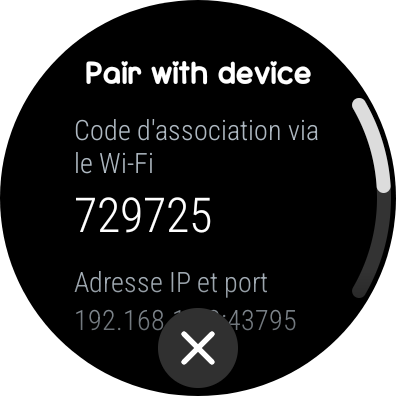
P.S: The port number and pair code change everytime you connect.
On your Samsung smartphone:
Be sure to be connected to the same Wi-fi as the Samsung Galaxy Watch 4
-Download Bugjaeger on playstore
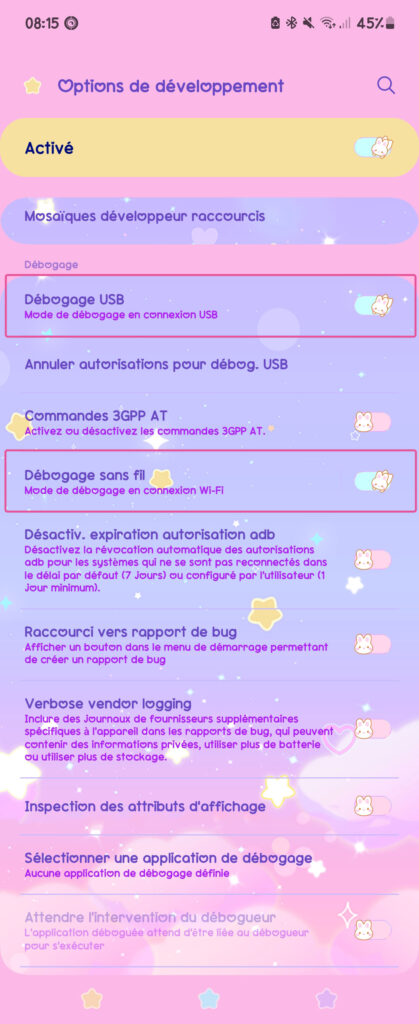
-Enable USB debugging and wireless debugging on your Android phone:
- Open the Settings app.
- Select System.
- Scroll to the bottom and select About phone.
- Scroll to the bottom and tap Build number 7 times.
- Return to the previous screen to find Developer options near the bottom.
- Scroll down and enable USB debugging and Wi-fi debugging
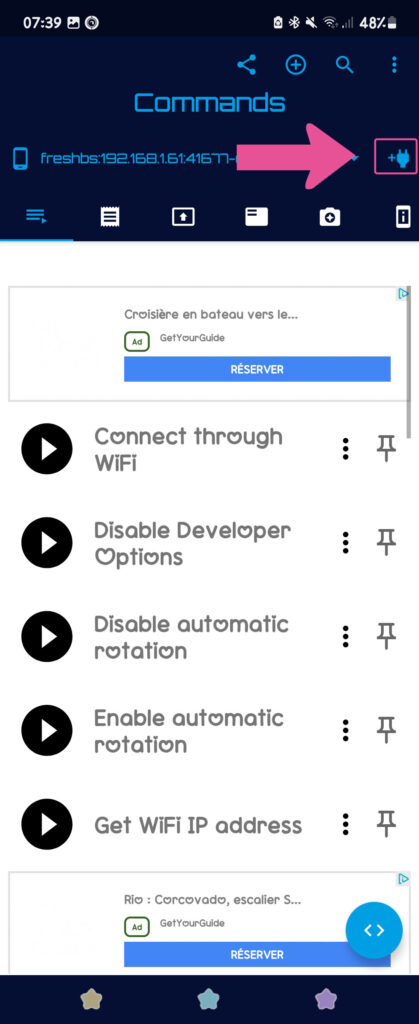
7. Open Bugjaeger
8. Now pair your smartphone with your Galaxy watch by clicking the socket icon on top right
9. Click on pair then add the IP Port and Pair code infos from your Galaxy Watch, then click on pair
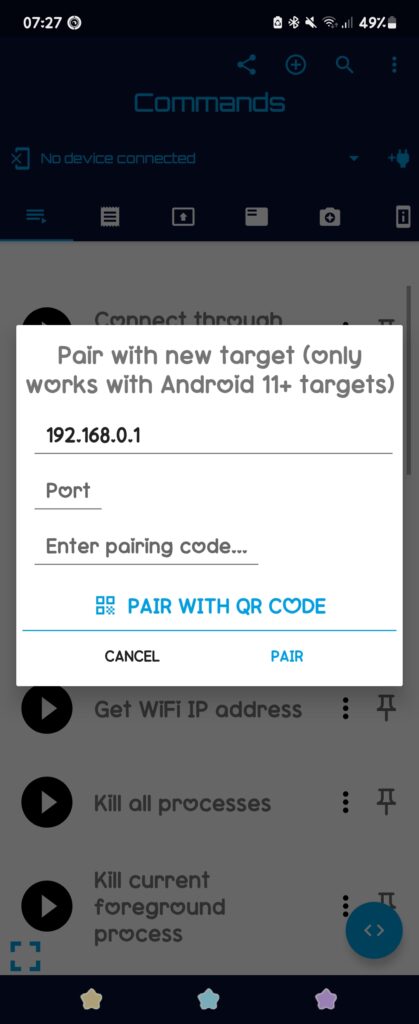
10. There is a new pop up
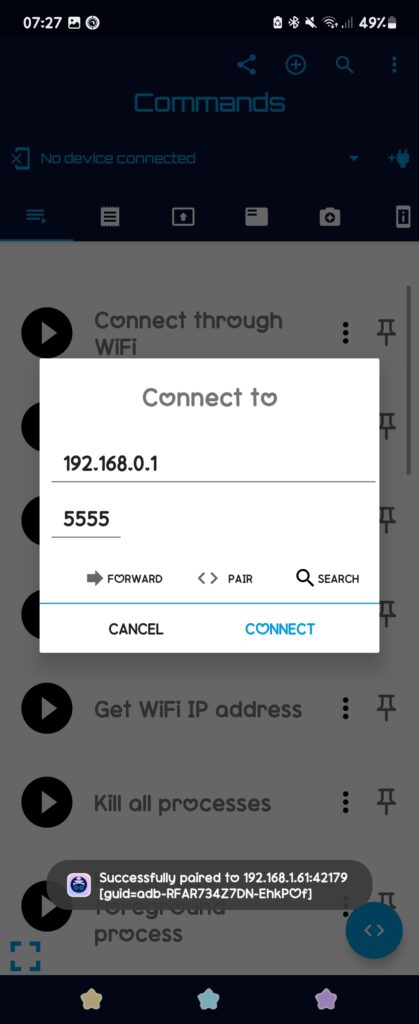
11. Back on your Galaxy watch and enter the IP and port (the one just under device name) in the pop up
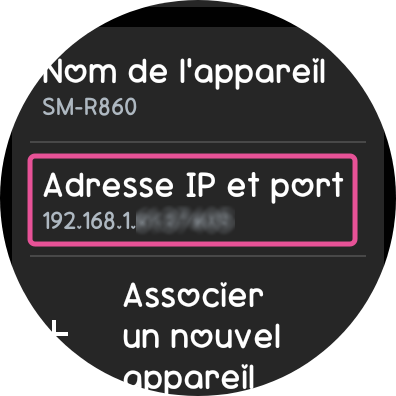
12. Then you should see your Galaxy Watch name
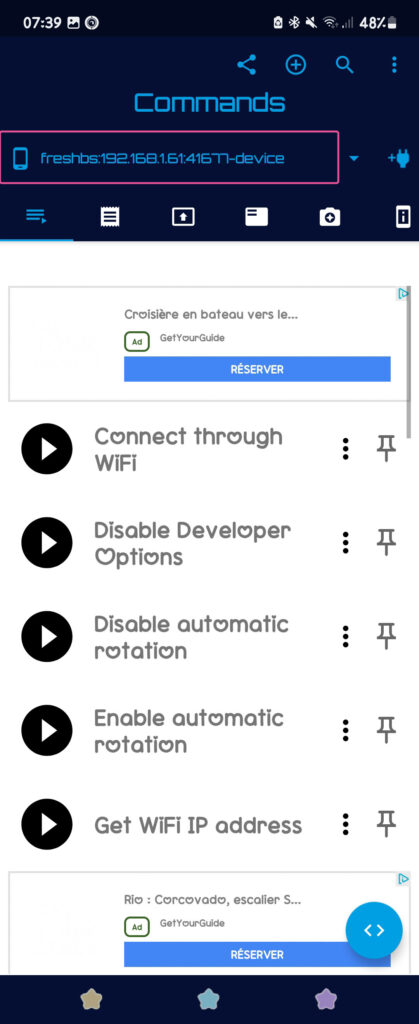
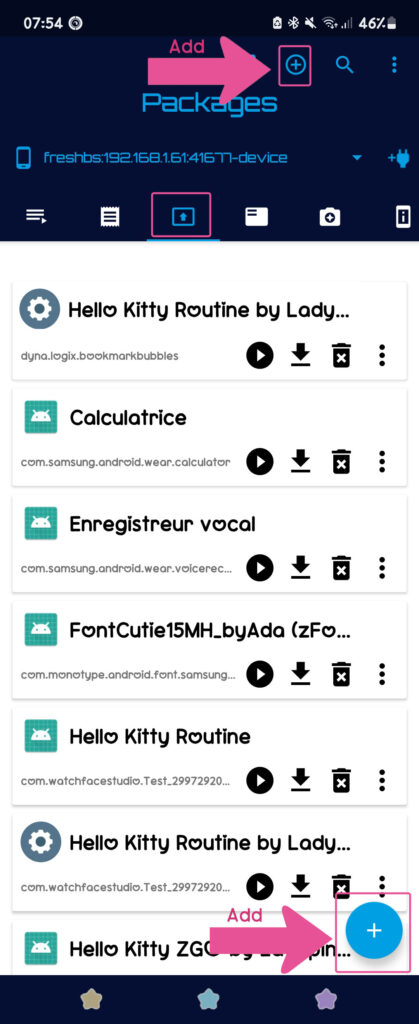
13. So now go in the package tab and click on the add button (If the first add button doesn’t work, click on the other one)
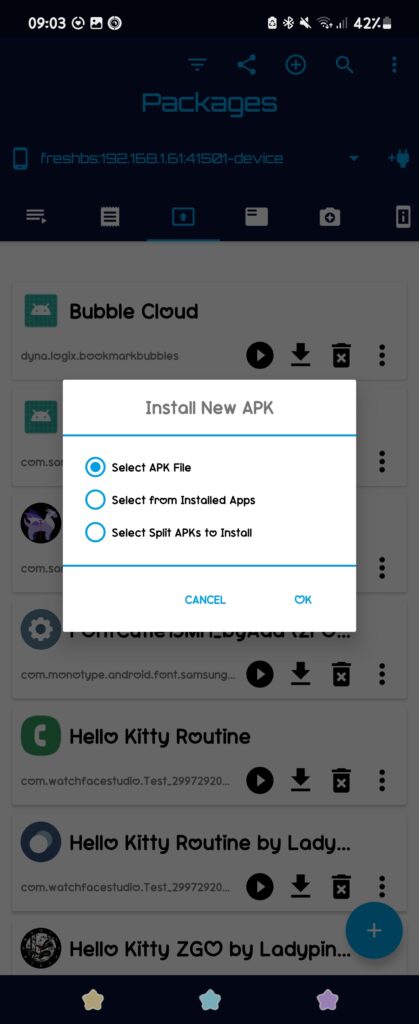
14. Click on “Select APK file” and look for your custom font in APK file
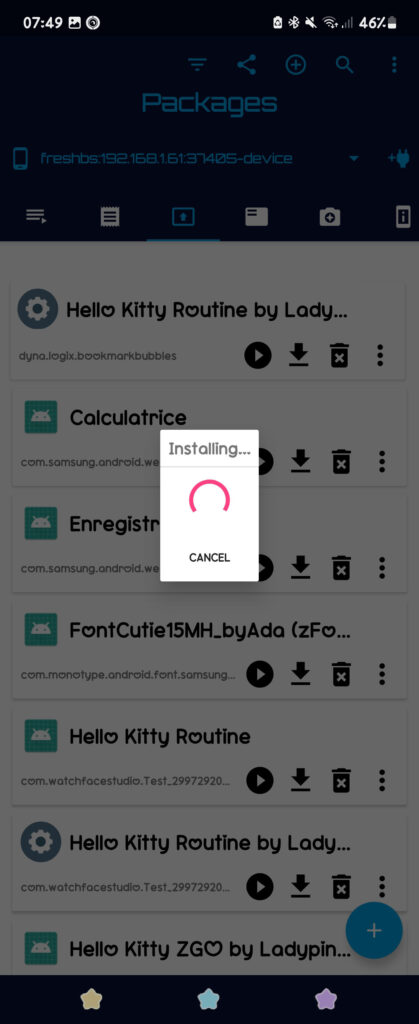
15. Install and wait
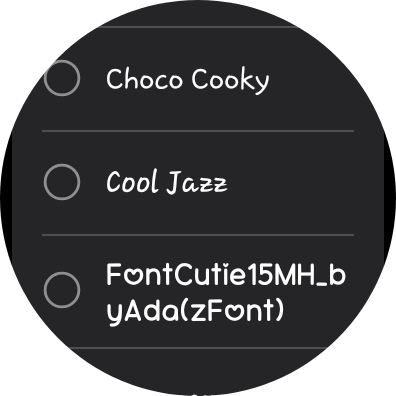
16. Back on your smartwach and change your font in Settings/Screen/Style of font by your custom font and you’re done! Enjoy!
Hope this helped!
Leave a Reply